
Using a @thefruitgroup.org email
Intro
The Fruit Group runs a Bluehost account that allows us to create emails under the domain name “thefruitgroup.org”. Some of the reasons to use a TFG email are:
- To address a member sending an email so he/she can identify and trust us as a sender.
- To address another member of the committee when you are communicating matters of TFG, as it leaves a paper trail for future members taking on the role in the future.
- To address a member of the public when we want to communicate officially representing the fruit group.
- For personal privacy, so as not to reveal our personal email either in sending an email, or in posting the email on the website, newsletter and other means of communication
- For GDPR reasons, as we can secure the fruit group emails and restore them if there was a problem
Getting a @thefruitgroup.org email
The emails are managed by the IT admin. If you believe your role in the committee, or a special assignment, needs you to communicate directly with email to the members or officially to the public, please request to create an email account to the Admin at admin (at) the fruitgroup.org
The IT admin will then get in touch and provide you with the email and its settings.
Using Webmail Online
Your email account is always accessible online via webmail. To reach it, write in your browser.
use : https://x616qicdnwp.preview.infomaniak.website/webmail
(you can also type https://thefruitgroup.org:2096 as that is the email port of the server)
This will prompt you a user -your user- and a password -you will be given this by the IT admin.
Once you get into your account you will see a screen like this:
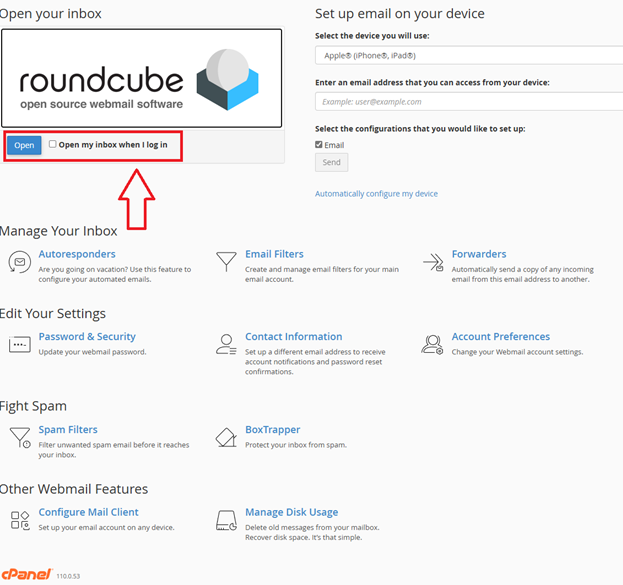
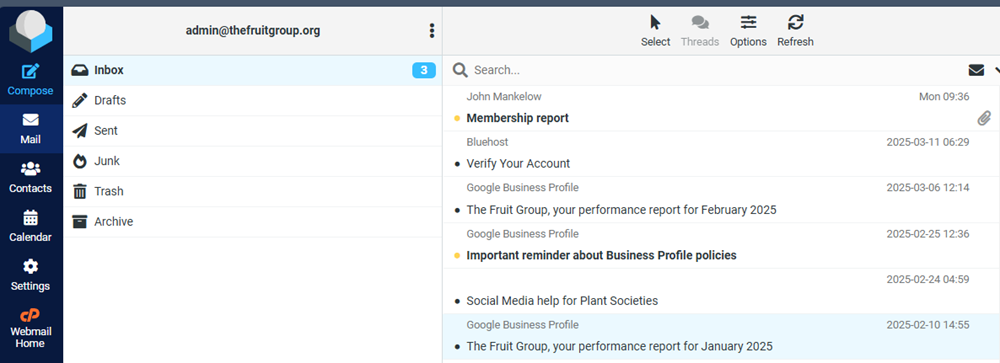
On the top left you can see a button that says OPEN that will let you access your email box. This main panel also lets you access loads of settings, like autoresponders if you are away on holiday, filters, contacts and other settings. Thus it is useful to NOT check the “open my inbox directly when I log in” so you can access all these settings.
The pannel should be easy to navigate and shuld be self explanatory if you use other emails like google or hotmail, but if you need extra help please contact the IT admin to set up a session to help you use the system.
Using a mail manager
A mail manager is a program -like Outlook, Thunderbird, or your Gmail account- where you can see and manage multiple accounts for example your personal one, work one, and TFG one all in one app.
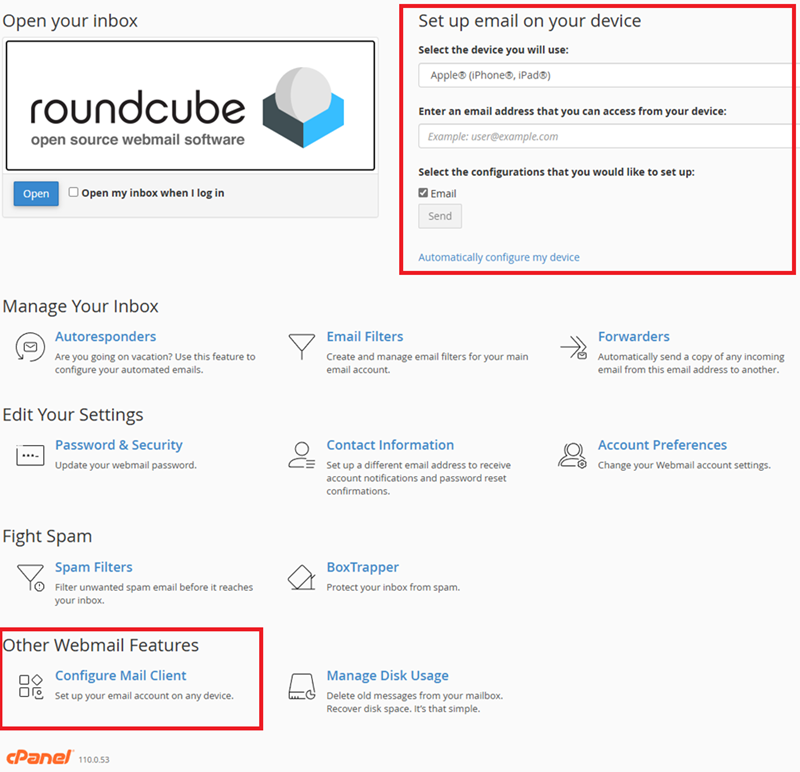
To do this you need to follow the menu of you app to add an account, and use the settings displayed in your webmail portal where it says “set up email on your device” / select the device, or – my preferred method- use the “other Webmail features/Configure mail client” at the bottom left and copy manually the settings that it will give you into your mail manager setup wizard
GDPR and Privacy when managing emails
Forwarding TFG emails to your personal email
This feature should not be used under GDPR rules because if you receive a forwarded email of The Fruit Group to your personal account, the big chances are you wont go into the webmail manager to respond with your official email, but you will respond from your personal one. Hence this practice is not compliant with our email safety, and you should not use it.
The only case where this can be used safely, is if you are covering for a colleague on the committee -e.g. during a holiday period- and there is an agreement that to not interrupt a service you will have one TFG email bounced over to another TFG email account, so the second person can give support. this should be overseen by the IT admin, and the forwarder deactivated once there is no longer a need.
The Fruit Group Footers
All emails of The Fruit group should have this footer, or a personal variation of it. You should be able to add footers using your mail manager options.
“This email has been sent to you from The Fruit Group, a plant society affiliated to the RHS. If you have received it by mistake, please let us know immediately by contacting the IT Admin at admin@thefruitgroup.org and delete the email”
Send To, CC and BCC
When you send an email, you may Send To a recipient or group of recipients, you may copy people in (CC) where their email is visible to everyone or copy them where their email is invisible to the people included (BCC)
While BCC seems an easy blanket solution, it can make it very difficult for some people to follow the conversation, and there are times when you want o see at a glance who is following the conversation.
We consider using The Fruit Group emails between the committee members only a safe practice that can be done by CC. e.g. if you send an email and include the treasurer and the membership TFG emails visible it is fine.
Sending and Copying committee members into an email
At the fruit group we have agreed that when we are working with our own committee members, it is ok to simply Send To and CC anyone’s Fruit Group email in (that is adding the editor, the membership, the chair…into the CC). This facilitates all the committee members to be able to follow who is included in the chain conversation on emails that are official.
However please BEWARE that you don’t include any ordinary members or public further down the chain and expose their emails to everyone
Sending and Copying ordinary members and/or public into an email.
Here are some rules for you to follow:
- When you are sending an email to ONE recipient (member or public), you can use the Send To, and CC any committee colleague into that email if needed.
- When you are sending an email to TWO or more recipients consider what relationship there is between the recipients. If they work in the same department of the same institution and you need to relay the information to both at the same time, you may CC them in. However in any doubt ensure you have their permission first to copy them in or use BCC instead.
- Do not assume that you can CC in members that are partners or family, especially if the content of the email is private.
- If you are sending an email to a mix of recipients including committee, members and/or public ensure you BCC all but the committee members.
- If you need to include someone new to a chain (even a committee member), it’s almost always better to start a new chain with the new person and copy paste the relevant block of text you need to debate to avoid exposing past confidential information without realising.
- If you do make a mistake and send an email to the wrong people, or in the wrong way, email the senders to ask for the email to be deleted, and inform the IT Admin.
- DO NOT send mass emails to long lists of recipients, and use a purpose tool like Mailchimp. To do this, prepare the text you want to communicate and send it to the editor to manage and send in a safe way.
- BEWARE that adding new people into a chain, and using autocomplete features on your mail manager or browser are two easy ways that you can breach privacy.